Managing API costs in Scroll
Scroll is a one-time Mac app, but cloud speech uses your own OpenAI API key. Here is what each mode sends, what models it uses, and how to keep the bill boring.
Scroll is sold as a one-time Mac app. The cloud AI usage is separate on purpose: it runs directly from your Mac to OpenAI with your own API key, so TinkerClaw never sees your key, your usage, or your OpenAI bill.
First: get an OpenAI API key
Cloud mode needs an OpenAI API key. Create one in the OpenAI API keys page, ideally inside a dedicated project for Scroll. OpenAI shows the full secret key only when you create it, so copy it once and keep it private.
In Scroll, open Settings → Account, paste the key in the OpenAI API Key field, and save it. Scroll stores the key in your macOS Keychain. If you do not want any cloud usage, turn on local-only mode instead.
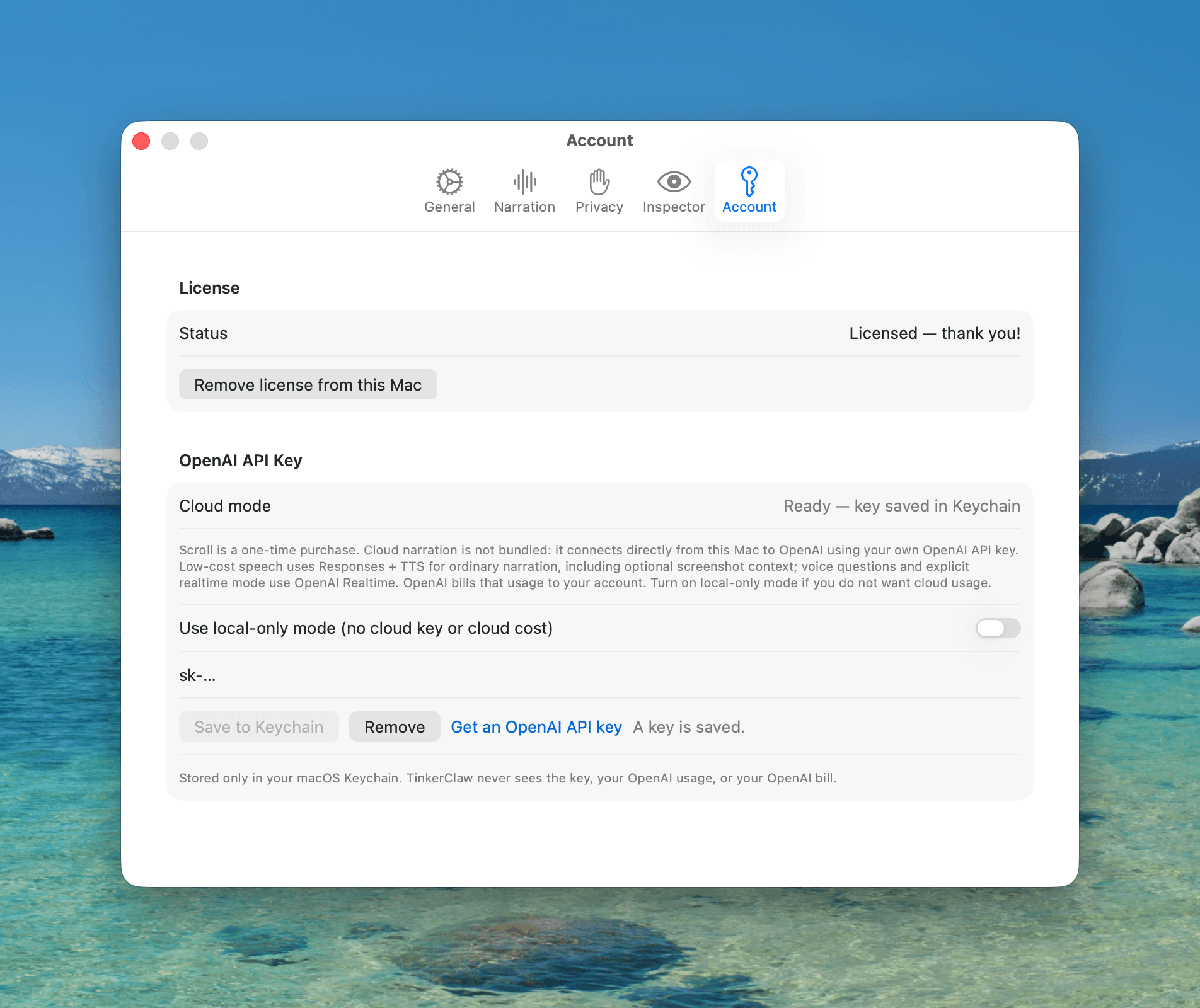
Two setup habits save pain later: use a unique key for Scroll, and add a project budget or usage alert in OpenAI. OpenAI’s pricing page also notes that ChatGPT subscriptions do not include API usage, so treat API spend as its own small utility bill.
The three modes
Scroll now has three different interaction modes because they should not all spend tokens the same way. Reading a page, asking a spoken question, and listening to body text are different jobs.
| Mode | Default model path | What OpenAI bills | Use it when |
|---|---|---|---|
| Look | GPT-5.4 nano + GPT-4o mini TTS | Text tokens, optional image tokens, and generated speech | You are skimming and want explanation as you scroll |
| Ask | GPT-Realtime mini by default; GPT-Realtime-2 if Standard is selected | Realtime audio input, audio output, text, and optional image tokens | You want a live voice conversation about the screen |
| Read Aloud | GPT-5.4 nano + GPT-4o mini TTS | Text tokens and generated speech | You want the relevant article or document body spoken aloud |
| Local-only | Apple on-device models + system speech | Nothing from OpenAI | You want no cloud usage, no key, and maximum privacy |
Look is the default because it is the efficient path
Look is the normal Scroll experience. Press Right Optionand keep reading. Scroll captures the visible text, asks GPT-5.4 nano to explain what matters, and sends that exact explanation to GPT-4o mini TTS. It also keeps dynamic highlights working because the generated transcript is still available to the highlight layer.
This is much cheaper than using realtime speech-to-speech for ordinary narration. OpenAI’s public pricing currently lists GPT-Realtime-2 audio output at a much higher token class than text models; the point of Look is to spend the expensive realtime audio path only when you are actually having a conversation.
If you are reading, use Look. If you are talking, use Ask. If you want the article body read back, use Read Aloud.
Ask costs more because it stays conversational
Ask opens a live voice conversation with Right Command. It uses Economy realtime by default, which maps to gpt-realtime-mini. If you explicitly choose Standard, Scroll uses gpt-realtime-2 for the higher-quality realtime path.
Realtime is the right tool for this mode because Ask has microphone input, turn-taking, interruptions, and follow-up questions. It is also the mode most likely to cost more if you leave it open while you are not using it. Toggle Ask off when the conversation is done.
OpenAI’s Realtime cost guide calls out prompt caching for repeated context in multi-turn sessions, and Scroll keeps Realtime reserved for the places where that live session earns its keep.
Read Aloud is smart, not a page dump
Read Aloud uses Right Shift. It does not blindly read every visible label, button, nav item, and sidebar. Scroll first gathers a readable body slice, then asks GPT-5.4 nano to select the relevant body text and reject UI chrome. That selected text goes to GPT-4o mini TTS.
The cost profile is close to Look: a small text step plus generated speech. The difference is intent. Look explains what you skim; Read Aloud speaks the content itself.
When screenshots are worth the extra tokens
Scroll can include screenshot context in the low-cost text step when visual context is enabled. OpenAI bills images as tokens, so screenshots are not free. They are worth it when the page contains charts, tables, diagrams, screenshots, UI flows, or layout-dependent meaning. They are not usually worth it for plain articles where the text already carries the content.
A cheap default setup
- Keep Look as the default mode for day-to-day reading.
- Keep Ask on Economy unless a specific conversation needs the Standard realtime model.
- Toggle Ask off when the conversation is over.
- Leave screenshot context off for text-only pages; turn it on for charts and visual documents.
- Use Read Aloud for long body text instead of realtime narration.
- Set an OpenAI project budget and alert, then check the usage dashboard after your first few real sessions.
What to watch in OpenAI usage
On the OpenAI dashboard, usage will not always appear under one friendly product name. Look and Read Aloud will show text model and speech usage. Ask will show realtime usage. If screenshots are enabled, image input tokens can also appear. That split is normal: it is the cost-saving architecture doing its job.
The cheapest Scroll habit is simple: explain with Look, converse with Ask, read bodies with Read Aloud, and save screenshots for pages where pixels actually matter.
Sources and current pricing
OpenAI pricing changes, and model availability can change too. The live references to check are OpenAI API Pricing, OpenAI’s Realtime cost guide, OpenAI project budgets, and OpenAI API key safety.
Scroll’s product rule is stable even if model prices move: ordinary reading should use the low-cost text-plus-TTS path, and realtime should be reserved for live voice conversation.
Read less. Understand more.
Scroll explains papers, PRs, and docs out loud as fast as you skim. Try it free for 7 days with email only, or keep it forever for $49.